Sale Price:
£9.99
Original Price:
£35.00
Imagine transforming your ordinary photos into extraordinary works of art in just a few clicks. You know the struggle of trying to make your designs stand out in a sea of digital art. That’s where these assets of background textures for photoshop comes in. Whether you’re working on a grunge texture or adding depth to a minimalist design, these Background Textures for Photoshop will give you the creative power to bring your visions to life. With textures ranging from subtle grains to bold, dramatic effects, you’ll captivate your audience like never before. Every click reveals new possibilities—are you ready to explore them?
Benefits of using Background Textures for Photoshop:
transform ordinary to extraordinary: Easily elevate your photos and designs with stunning textures.
professional results: Create high-quality, realistic effects that make your work stand out.
versatile use: Perfect for photographers, designers, and artists looking to add depth and dimension.
time-saving: Achieve the perfect look in just a few clicks, without spending hours on complex edits.
endless creativity: With a wide variety of textures, your creative possibilities are limitless.
Step-by-Step: How to Use Background Textures for Photoshop
Choose your texture: Browse through to the extensive collection of texture overlays and pick the one that best suits your project.
Open your photo in photoshop: Start by opening the image you want to enhance with a texture overlay.
Place the texture overlay: Drag the texture file into your Photoshop workspace and position it over your photo.
Adjust the blending mode: In the Layers panel, change the blending mode of the texture layer to options like “Overlay” or “Soft Light” for a seamless blend.
Fine-tune the effect: Adjust the opacity of the texture layer to control the intensity. Use layer masks to erase or fade the texture in specific areas.
Save your work: Once satisfied with the look, save your file, and you're ready to showcase your masterpiece!
Are you ready to elevate your Photoshop projects to the next level?
Don’t let your designs blend into the background—stand out with the power of texture. Get instant access to Background Textures for Photoshop now and watch your creations transform before your eyes!
Related links:
HOW TO use Drag-the-Shutter overlay in photoshop-Youtube video
Imagine transforming your ordinary photos into extraordinary works of art in just a few clicks. You know the struggle of trying to make your designs stand out in a sea of digital art. That’s where these assets of background textures for photoshop comes in. Whether you’re working on a grunge texture or adding depth to a minimalist design, these Background Textures for Photoshop will give you the creative power to bring your visions to life. With textures ranging from subtle grains to bold, dramatic effects, you’ll captivate your audience like never before. Every click reveals new possibilities—are you ready to explore them?
Benefits of using Background Textures for Photoshop:
transform ordinary to extraordinary: Easily elevate your photos and designs with stunning textures.
professional results: Create high-quality, realistic effects that make your work stand out.
versatile use: Perfect for photographers, designers, and artists looking to add depth and dimension.
time-saving: Achieve the perfect look in just a few clicks, without spending hours on complex edits.
endless creativity: With a wide variety of textures, your creative possibilities are limitless.
Step-by-Step: How to Use Background Textures for Photoshop
Choose your texture: Browse through to the extensive collection of texture overlays and pick the one that best suits your project.
Open your photo in photoshop: Start by opening the image you want to enhance with a texture overlay.
Place the texture overlay: Drag the texture file into your Photoshop workspace and position it over your photo.
Adjust the blending mode: In the Layers panel, change the blending mode of the texture layer to options like “Overlay” or “Soft Light” for a seamless blend.
Fine-tune the effect: Adjust the opacity of the texture layer to control the intensity. Use layer masks to erase or fade the texture in specific areas.
Save your work: Once satisfied with the look, save your file, and you're ready to showcase your masterpiece!
Are you ready to elevate your Photoshop projects to the next level?
Don’t let your designs blend into the background—stand out with the power of texture. Get instant access to Background Textures for Photoshop now and watch your creations transform before your eyes!
Related links:
HOW TO use Drag-the-Shutter overlay in photoshop-Youtube video
 Image 1 of 24
 Image 2 of 24
 Image 3 of 24
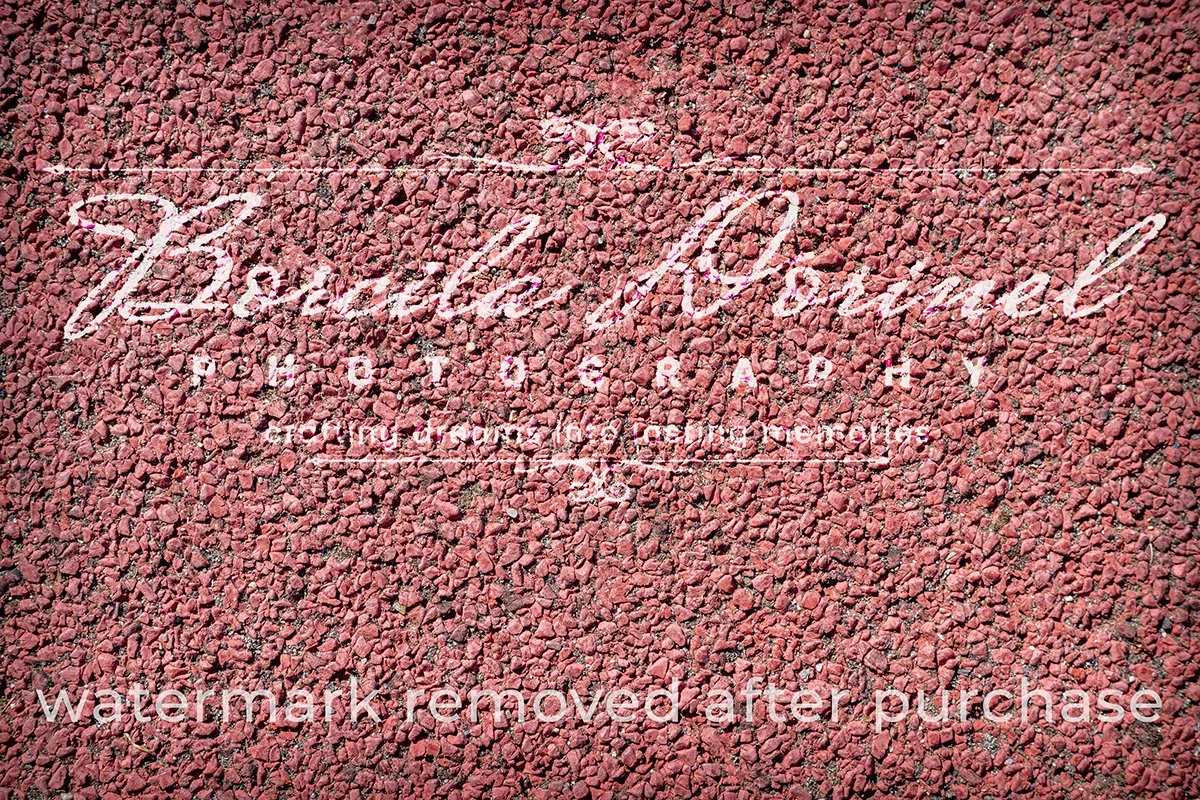 Image 4 of 24
 Image 5 of 24
 Image 6 of 24
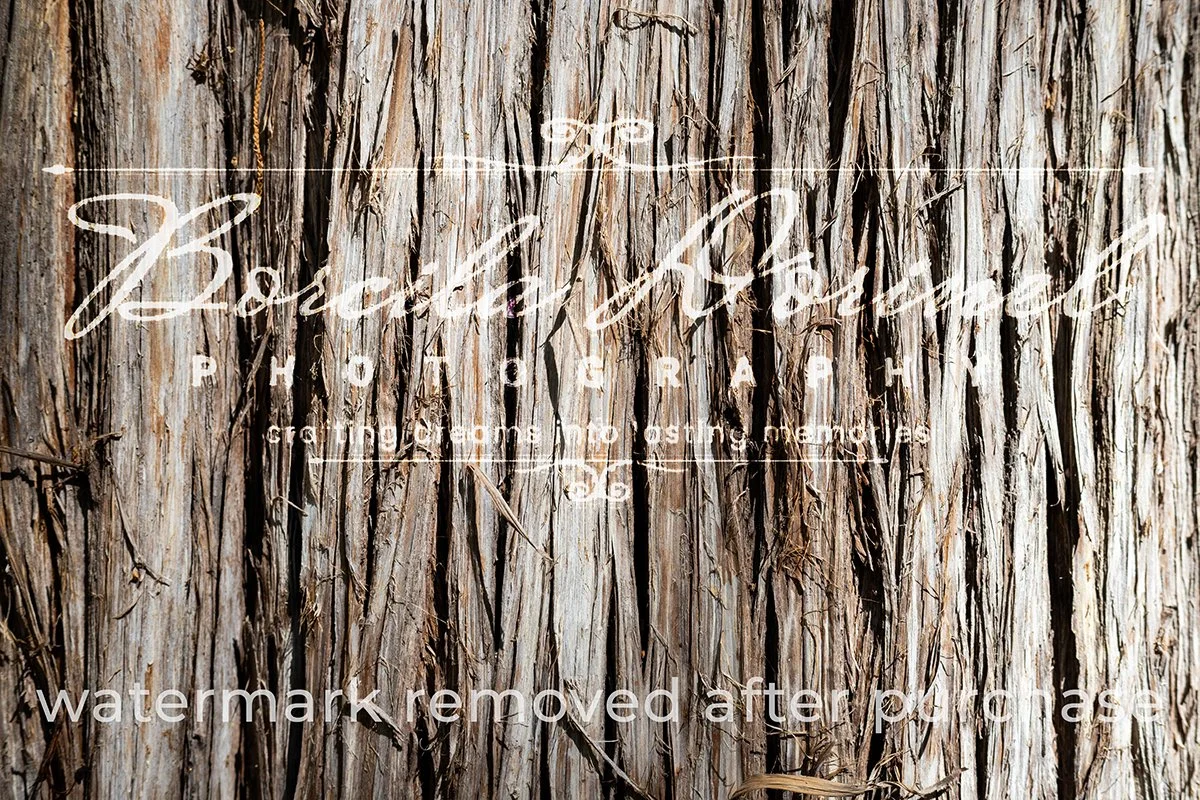 Image 7 of 24
 Image 8 of 24
 Image 9 of 24
 Image 10 of 24
 Image 11 of 24
 Image 12 of 24
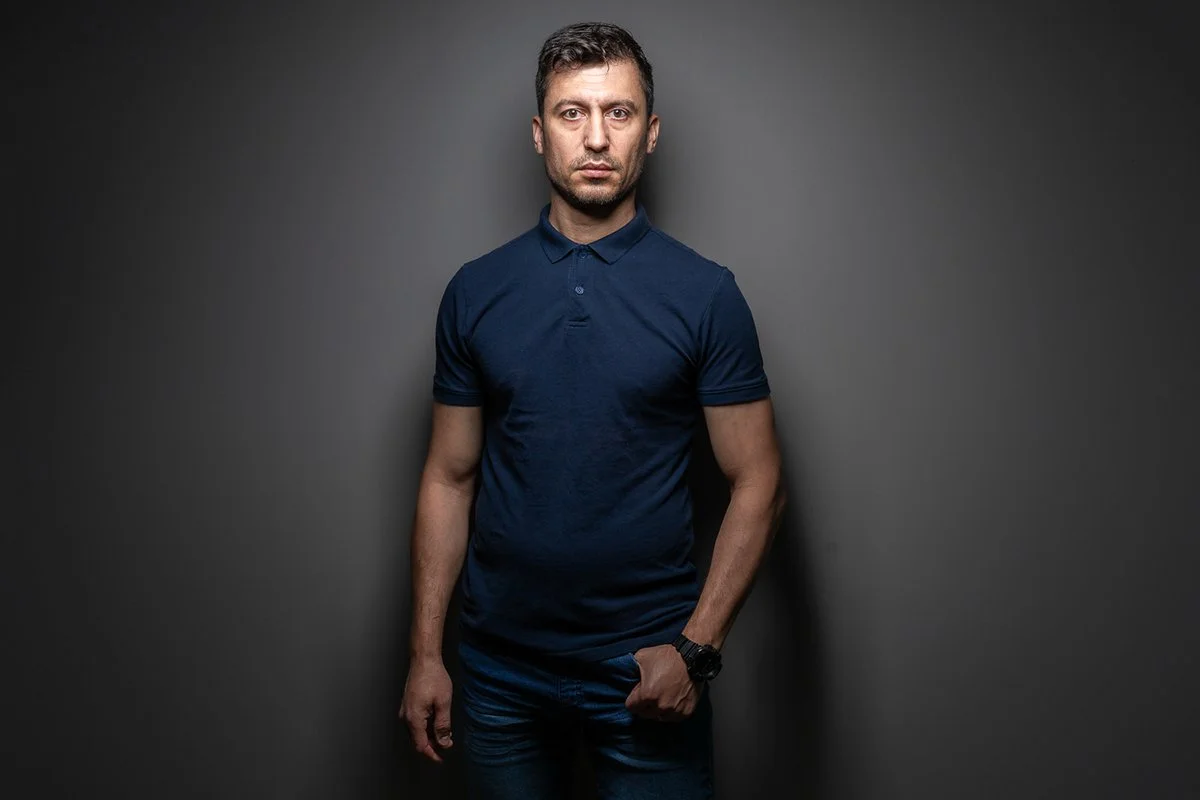 Image 13 of 24
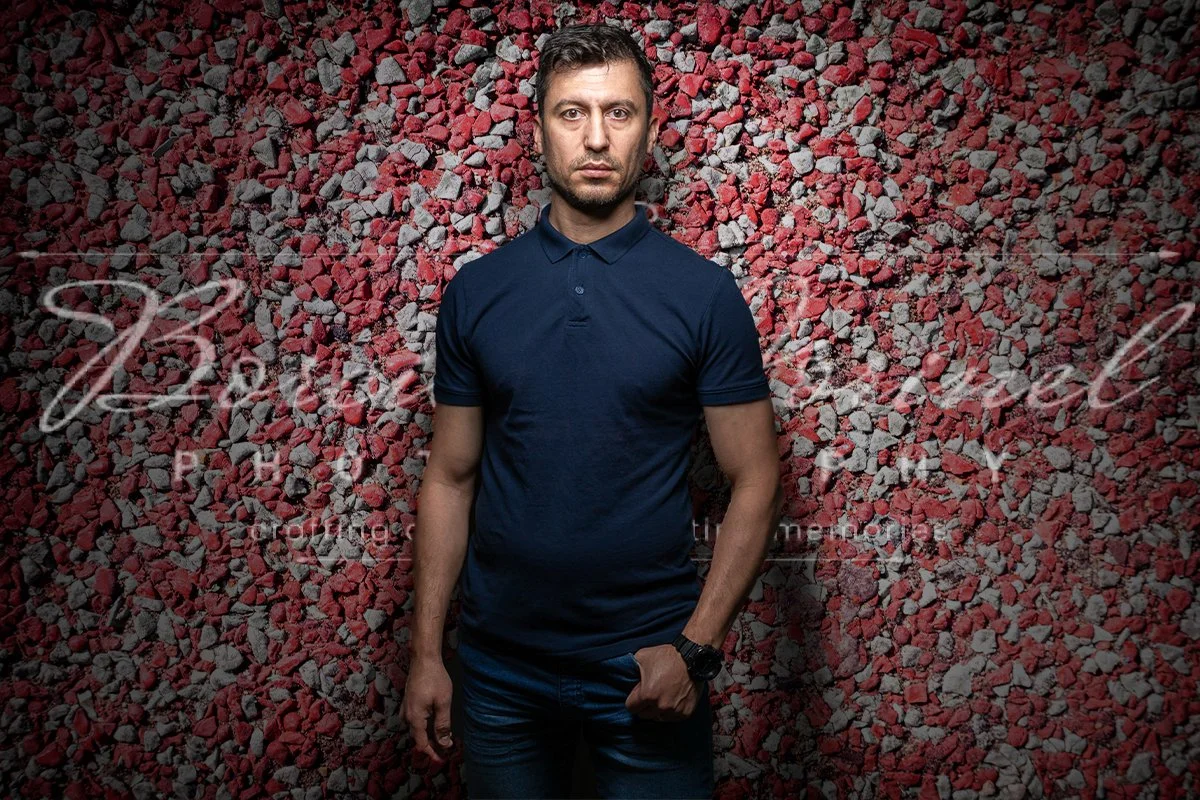 Image 14 of 24
 Image 15 of 24
 Image 16 of 24
 Image 17 of 24
 Image 18 of 24
 Image 19 of 24
 Image 20 of 24
 Image 21 of 24
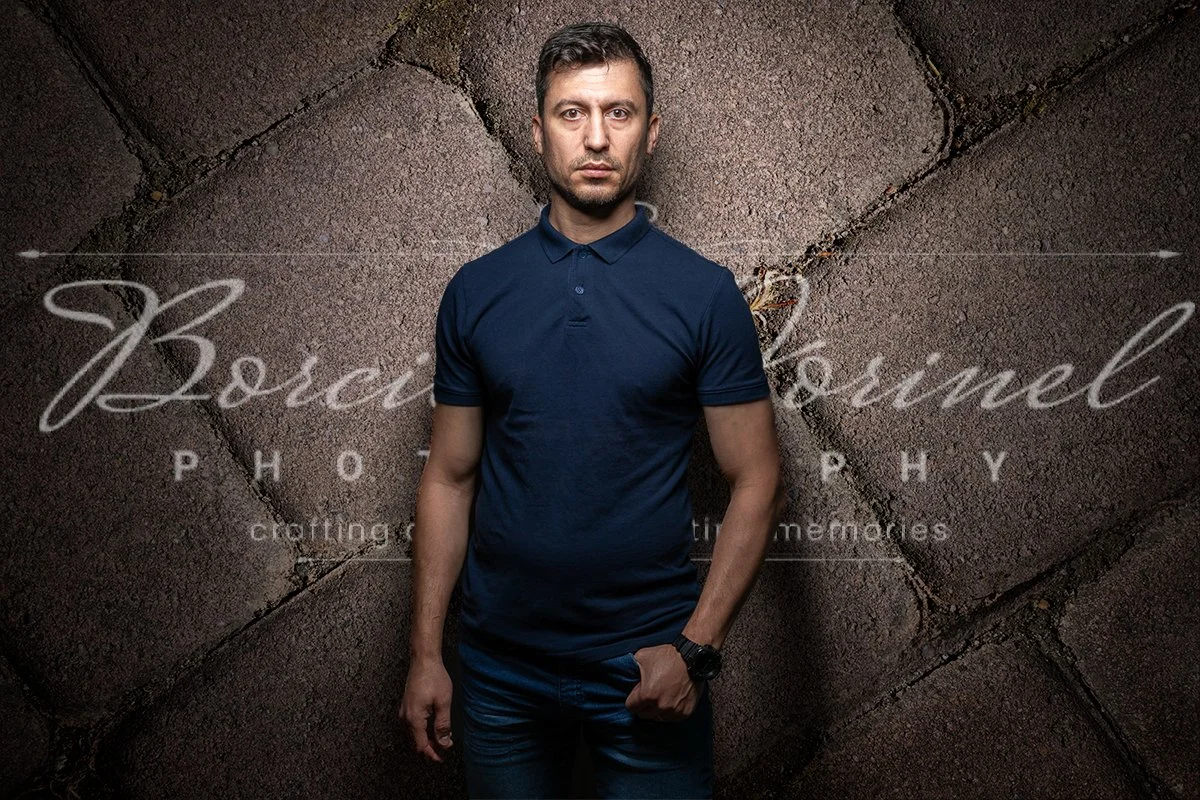 Image 22 of 24
 Image 23 of 24
 Image 24 of 24